☰ Menu

Google made mobile application for making money , now everyone will earn cash in dollars

Google made mobile application for making money , now everyone will earn cash in dollars


Today, everyone is with smartphones and today with the Internet, lakhs of people in our country are unemployed today, and so only one thing keeps going in the minds of such people, how they earn money online. There are so many ways to earn money online, this is just something right, but something that is wrong but that's right in Google is very important


With Google it means Google's addsence yes, that's the thing from which large eBay users earn money, because of this every ad gets in the website and people earn money from it, but getting this add-on activated is everyone. It's not just about the matter. That's why Google has created a mobile application that allows you to earn a little more money but not much.


Google Opinion Rewards: Google's application of Google Opinion Rewards is a great way to earn money and the special thing is that you do not seem to be hard at it, you have to give the correct answer to the survey and you can win it. You can make as much money as you can with 1 dollar of surveys and the number of surveys you do.


You will not find any more difficult questions in the survey. Just ask to show you the things you have seen, tell it is the logo of the company and you just have to give the correct answer. Doing so will give you as much money as you decided by Google. There are more such apps but I do not trust them all, so I will not tell you about them.


The information that has been told will not help you earn more money but just say that if you are earning money in the right way, then first learn some art and then you will start coming to the money. You have the greatest power in the world. You can do anything if you want. Just use it right. Thank you.

How to remove virus in Android Phones?

How To Remove Virus In Android Phones?


The more the smartphone gives us the convenience, it also becomes a problem for us, but it happens when you download too much, browsing or file sharing with your phone, the phone becomes a victim of the virus without your knowledge .

The result is that the phone becomes slow. Speed ​​never gets less and faster. Ed starts appearing when you open the app. Frequently your mobile seems to be pointing to updates but you still do not understand what the Manjra is. So let's tell you how to get rid of it.

After restarting the smartphone, go to Device Options opson. You will see apps that are installed in your phone as well as viruses will also run. If the virus is visible, then uninstall it. Some viruses are such that there is no opiate objection.


Reboot your smartphone to safe mode, doing so turns off the third-party apps running in your phone and the virus that is running the virus. In some phones, this opson comes from holding the power button for a while.

After deleting the unmanaged app from your phone, restart the phone once again at Normal mode, if you do this, then the phone will run faster and the virus will also go away. Many phones have low RAM, so users can install antivirus on their smartphone and scan the virus and unstablish it.


In such cases, delete them by going to the settings in Device administrator. By visiting Device Administrator, you will see a complete list of installed apps that are of your work. Uninstall those that are not of work. For this, you also have to select the option of the deactivation op on the window on the screen.

6 Pictures that will touch you with their deep meanings

6 Pictures that will touch you with their deep meanings


. Today I have brought a funny article about six pictures that will touch you with their deep meanings. Some of these pictures will touch your heart & make you emotional. Let me show those pictures to all of you here.

1. This shows the importance of a Father in our life.


2. This picture gives us an inspirational message of helping our parent's in every stage:


3. This picture illustrate a beautiful message about importance of Soldiers for us & also to our Country:


4. This illustrate that practice makes a man perfect:


5. This photo tells us about the circle of life:


 6. This picture depicts the spirit & zeal of learning:


Looking at this above picture what do you say about them guys? Isn't it the true spirit of learning?

Write down your answers & thoughts about this awesome post in the below box & share it with whosoever you know. Follow our Jaatstuff blog for getting such interesting articles being published everyday. Thank you & see you all in my next upcoming post which is coming soon.

How to Export Old Device Drivers to a New Windows Installation

How to Export Old Device Drivers to a New Windows Installation

Old Hardware, Bad Luck?
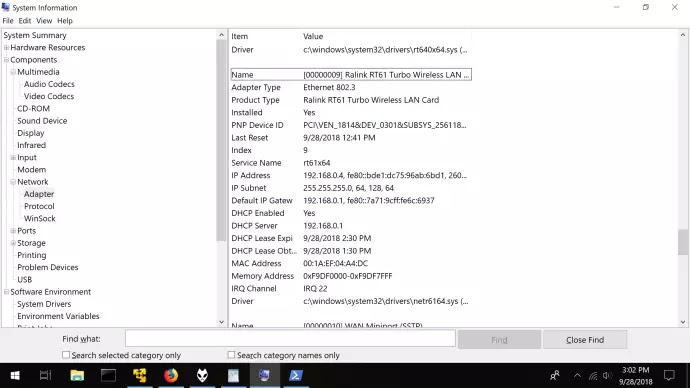
Finding drivers online for old hardware can range from difficult to impossible if the gear is outdated by a decade, was never widely circulated in the first place, and no longer receives support from the manufacturer. Such was the situation for a Rosewill-branded PCI wireless network adapter that we recently installed on Windows 10 without an original installation disc or traditional installer.

The device, a "Ralink RT61 Turbo," was purchased in 2009 and still performs well enough despite not having software updates since Windows Vista/7 and not being automatically recognized by newer versions of the operating system. Not having an Internet connection on a new OS can be particularly annoying because you can't get online to search for the drivers.


After trying to install the card on Windows 10 with many files from around the web (downloaded elsewhere), we discovered that you can export drivers for third-party devices from one copy of Windows to another -- great news seeing that we had a previous instance of Windows on another drive where the Wi-Fi card was installed and functional.

Generate and Save a List of Devices/Drivers

If you need to identify a specific piece of hardware or the location of a driver file, the easiest method may be from Windows' "System Information" application, which can be launched by searching Start or Run for msinfo32.exe.


The utility opens a window that lists system information including all devices, their drivers (with a full drive path for the location of each one so they're easy to find) among other details, and this information can be saved to a text file by going to File > Export (no actual drivers are exported).

Generate a list of drivers in the Command Prompt

You can also generate a list of drivers by entering any one of these lines into a Command Prompt (excluding the notes afterward). Some of the commands in this article may require administrator privileges and an elevated Command Prompt can be opened by right-clicking cmd.exe > Run as administrator.

While entering any of these commands should produce a list of drivers, each one outputs different information and formatting.

⦁ pnputil.exe /e
⦁ dism.exe /Online /Get-Drivers (generates a list of third-party drivers)
⦁ dism.exe /Online /Get-Drivers /All (generates list of all drivers in the Driver Store)
⦁ driverquery (includes basic information)
⦁ driverquery /FO list /v (includes more information)

Also note that you can copy one of those lines and then right-click anywhere in your Command Prompt window to paste the text. If that isn't working, right-click the Command Prompt's title bar (the Windows bar on top), go to Properties and enable "QuickEdit Mode."


Save that generated list of drivers as a text file

By adding another string of text to the end of those commands, the output can be saved to a new text file in a location of your choosing by changing directory path in the command that you enter. If you want the file saved to your desktop, still be sure to change the username from TechSpot to your own:

⦁ pnputil.exe /e > C:\Users\TechSpot\Desktop\driverlist.txt
⦁ dism.exe /Online /Get-Drivers > C:\Users\TechSpot\Desktop\driverlist.txt
⦁ dism.exe /Online /Get-Drivers /All > C:\Users\TechSpot\Desktop\driverlist.txt
⦁ driveryquery > C:\Users\TechSpot\Desktop\driverlist.txt
⦁ driverquery /FO list /v > C:\Users\TechSpot\Desktop\driverlist.txt

Third-party tools that display system information:SIW | HWiNFO64 | SIV

Export All Driver Files to a Backup Folder

For drivers to be installed on Windows, they must be located in the operating system's "DriverStore" folder (C:\Windows\System32\DriverStore\FileRepository), which contains all driver INFs and their associated files. This is where we'll be retrieving the drivers form

Before getting started, note that you may be able to skip the trouble of exporting and importing the drivers. From the Device Manager on the copy of Windows which needs the driver, if you can navigate to the DriverStore folder of another Windows installation where the driver is located, then the Device Manager should be able to search that destination for compatible driver files. Right-click the device, go to "Update driver," then follow the prompts until you can browse to DriverStore on the other OS (or wherever your drivers are).


Also, exporting the driver files from Windows won't include additional software that would typically be bundled with a driver package, such as a utility that accompanies the driver. However, in many cases Windows provides the given functionality natively to some extent (an interface for connecting to wireless networks for instance). That said, you may be able to copy the program files directly from one instance of Windows to another, or find the utility as a separate download from the driver, or a similar package with the same utility.

Export/backup Windows drivers via Command Prompt

Running either of the Command Prompt or PowerShell operations below will extract all of the drivers in System32\DriverStore from your active Windows installation and save them to a new folder (we manually created a folder in our desktop called "driverbackup"), from which you can import/install them to another instance of Windows.

Enter this command to begin exporting all of your driver files to that new folder:

dism /online /export-driver /destination:C:\Users\TechSpot\Desktop\driverbackup


Export/backup Windows drivers via PowerShell

Alternatively, you can perform the same action by entering this command into an elevated PowerShell.

Export-WindowsDriver -Online -Destination C:\Users\TechSpot\Desktop\driverbackup


"-Online" designates that the files are being exported from the currently active operating system. However, you can export drivers from an offline image with a separate command:

Export-WindowsDriver -Path C:\offline-image -Destination C:\Users\TechSpot\Desktop\driverbackup

If these commands aren't working, you may need to install the latest versions of Microsoft's ADK and/or .NET Framework.

How to Install Exported Windows Drivers

There are a few options for importing the driver to another installation of Windows, including one that only involves a few clicks from the GUI of File Explorer:

Boot into the copy of Windows where you want to install the exported drivers
Navigate to the backup folder and find the folder for the driver that you want added to Windows
Right-click the INF file and choose Install


You may also be able to have Windows Device Manager automatically search for a driver in the exported folder by right-clicking the device, going to "Update driver" and following the prompts for "Manually install a driver" until you can browse to your drivers. This didn't work for our Wi-Fi adapter, but the previous method did (manually installing directly from the INF file).

Other Tools to Backup/Install Drivers

Much of the free software that advertises the ability to "backup" drivers only saves a list of installed drivers like we described earlier in this article and in our testing it was difficult to find one that exports your actual driver files.

Despite not having the most modern interface, Double Driver was an exception, offering a built-in driver backup feature that creates a folder of exported drivers similar to the one that is generated by the options built into Windows.

Quick navigation: Click Backup > Scan Current System or Scan Other System > Check the boxes next to the drivers you want to back up > Click Backup Now and follow the rest of the prompts


You can browse these extracted files from File Explorer and right-click the INFs to install a driver from the context menu like we mentioned earlier, or Double Driver has a driver installation GUI in the Restore tab where you canload the backup folder and select which drivers you want added to Windows.

How to improve battery life on Android phones? Google offers best tips

How to improve battery life on Android phones? Google offers best tips


Google accepted its blunder that may have cost Android phones users their precious battery life.
As smartphones get better and better with advanced specs, people's concerns about battery life continue to grow. Smartphone displays consume the highest battery power and lighter themes tend to draw more energy, which is why dark modes are gaining popularity. But for years, Google pushed for the use of white colour in its Material Theme, consuming higher than average amount of battery, only to realise it now and call for action.

Google did an extensive study and shared its findings at the 2018 Android Dev Summit. Everything from power draw difference between normal mode and "night mode" and studying each colour and its power draw at different brightness levels helped Google understand the importance of a darker theme in saving battery on phones.

In one of the slides presented at the summit, Google showed that maximum brightness in night mode on a Pixel AMOLED screen was 63 percent lower than the max brightness in normal mode (day). This finding was based on displaying a screenshot of Google Maps in both modes. By comparison, iPhone 7's LCD display had no change in power draw whether used in normal or night mode.

Similarly, Google also acknowledged the fact that white hue drew maximum power while black barely used any power at all. This study was a realisation point for Google, where it pushed the use of white colour as primary on all apps and interfaces since Material Design's inception.


Google's official Material Design information site shows the domination of colour white in the baseline Material colour theme. From Primary to Background and Surface and On Error, everything is power-draining white.

With this realisation, Google will likely bring Dark Mode to Android apps in the future, SlashGear reported. Until then, here are some apps that support the coveted dark mode and some tips on how to preserve the precious battery life on smartphones.

But before we get to that, let us stress upon the importance of having a dark (possibly all black) wallpaper for your home and lock screen. This is the first thing that appears on the phone when you unlock so it makes sense to have a dark wallpaper. In addition to that, some devices like OnePlus phones offer Dark Theme, which automatically uses black-dominating screens for home, settings and such. Google's stock Android also has a Dark theme setting under Display settings, so be sure to activate that.

Now switch to dark theme on these apps to further preserve your phone's battery.

Gboard

While most of us don't realise, keyboard app is extensively used while chatting or searching anything on the web or using social media apps. If you're using a third-party keyboard from Swiftkey or going with stock Gboard, you can instantly turn the keyboard to dark mode and save your phone from a significant power draw, especially when the screen brightness is at 100 percent.


Go to your phone's "keyboard and inputs" settings under "languages & input" then find Gboard and select theme. From a list of options, select the black theme or any darker shade to suit your preference.

Maps

Moving on, your Google Maps also has a dark theme. To activate the same, go to settings from the sidebar > Navigation settings > and select Night under color scheme. Remember, the dark theme will only kick during navigation while the overall app will continue to dominate the white background.

YouTube

If you're an entertainment buff, it is natural you spend a lot of time on YouTube. Well, Google has shown that using night mode on YouTube can consume 60 percent less power at max brightness. That's a good reason to make the switch.


Go to YouTube > General > Activate Dark theme.


Twitter

There aren't many popular third-party apps that support dark theme (are you listening Facebook?), but Twitter isn't one of them. Switch to dark mode on the micro-blogging platform by going into Settings and Privacy > Display and sound > Turn on Night Mode.


WhatsApp

WhatsApp is clearly a popular messaging app with over a billion users, but it lacks a dark mode. But the app partially allows you to experience a dark theme. Go to Settings > Chats > Wallpaper > Solid Color > Choose the dark colour from the options. It's worth noting that the wallpaper will only appear inside a chat window and the overall app will still appear in black and green colour combination.


SMS

SMS days are long gone, but you can still turn on dark theme for your messaging app by tapping the three dots on the top corner and enabling dark mode.